
Get Free PC Consultation
Talk to our experts and get the best PC solution for your needs and budget.
Your details are safe. No spam, ever.

Talk to our experts and get the best PC solution for your needs and budget.
Your details are safe. No spam, ever.
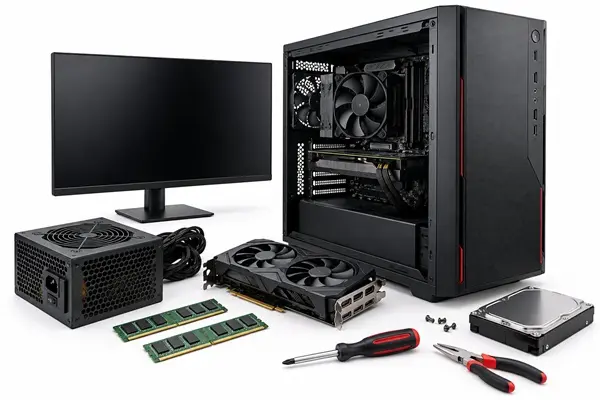
Have you ever pressed your computer’s power button, expecting it to start normally, but nothing happened? Maybe the fans are not spinning, the screen remains black, or your PC turns on for a few seconds and then shuts down.
A PC that refuses to turn on can be frustrating, especially when you need it for work, gaming, or other important tasks.
The good news is that not every startup problem means your computer has a major hardware failure. Sometimes, the issue is as simple as a loose power cable, a faulty power outlet, or improperly seated RAM.
In this guide, we will explain the 10 most common reasons why your PC is not turning on, how to identify the problem, and what you can do to fix it.
Before opening your computer cabinet or replacing any components, start with the basics.
A loose power cable or faulty electrical socket is one of the easiest problems to overlook.
How to fix it:
Make sure the power cable is firmly connected to the back of your PC.
Check whether the other end is properly connected to the wall socket or extension board.
Try plugging your PC into another working power outlet.
If possible, test with another compatible power cable.
Check your extension board or surge protector.
If your motherboard lights or other indicators turn on after checking the connection, the issue may have been related to the power supply connection.
The Power Supply Unit (PSU) provides electricity to all the major components inside your computer, including the motherboard, processor, graphics card, and storage drives.
If your PSU is faulty or not delivering enough power, your PC may not turn on at all.
Common signs of a PSU problem:
No response when pressing the power button.
PC suddenly shuts down.
Fans start spinning but immediately stop.
Computer restarts repeatedly.
Burning smell or unusual noises from the PSU.
How to fix it:
Check whether the PSU’s rear power switch is set to ON (I).
Check the power cable and wall connection.
Inspect the PSU for visible damage or unusual smells.
If you have access to a compatible, known-good PSU, have a technician test it.
If the PSU is damaged, replacing it with a reliable unit of sufficient wattage may solve the problem.
Important: Never open a PSU yourself. It can retain dangerous electrical charges even after being disconnected from power.
RAM (Random Access Memory) plays an important role in helping your computer start and operate.
If your RAM is not properly seated, your PC may turn on but fail to display anything on the monitor. In some cases, it may repeatedly restart or show a memory-related error.
How to fix it:
Turn off your computer and disconnect the power cable.
Press the power button for a few seconds to discharge residual power.
Open the cabinet carefully.
Locate the RAM modules on the motherboard.
Remove and reinstall the RAM firmly until the retention clips lock.
If you have multiple RAM sticks, test them individually using the motherboard’s recommended memory slot.
If your motherboard has diagnostic LEDs, check whether the DRAM light remains on.
This can help identify a memory-related startup issue.
If your computer powers on but the monitor displays a black screen, the graphics card could be responsible.
This is particularly common in gaming PCs with dedicated graphics cards.
Possible reasons:
Graphics card is not properly installed.
PCIe power connectors are disconnected.
Graphics card is faulty.
Monitor cable is connected to the wrong display port.
Graphics card is not receiving sufficient power.
How to fix it:
Check the HDMI or DisplayPort cable.
Make sure the monitor is connected to the correct graphics output.
Check whether the graphics card is properly seated.
Verify that all required PCIe power connectors are connected.
If your processor has integrated graphics, test the display using the motherboard’s video output.
If the graphics card is damaged, professional testing may be required.
The motherboard connects and coordinates all major components of your PC.
If the motherboard develops a fault, your computer may fail to power on, restart unexpectedly, or stop during startup.
Common signs of motherboard problems:
No display despite the fans spinning.
Diagnostic LEDs showing CPU, DRAM, VGA, or BOOT errors.
PC repeatedly restarting.
USB ports or other motherboard connections not working.
Visible damage, corrosion, or burnt components.
How to fix it:
Check all motherboard power connections.
Ensure the 24-pin ATX connector is properly connected.
Check the 4-pin or 8-pin CPU power connector.
Look for motherboard diagnostic lights.
Check for visible physical damage.
If the motherboard has suffered electrical damage, consult a qualified technician before replacing it.
Sometimes the problem is not inside your computer’s main hardware. The cabinet’s power button or its connection to the motherboard may be faulty.
The power button connects to a small set of pins on the motherboard, usually labelled F_PANEL or JFP1.
How to fix it:
Check whether the front-panel connector is properly connected.
Refer to your motherboard manual for the correct power switch pin locations.
Check whether the cabinet power button is physically damaged.
A technician can test the motherboard’s power switch connection directly. Avoid shorting motherboard pins unless you know the correct procedure and have followed the manufacturer’s instructions.
The CPU is the main processing component of your computer. If it is not receiving proper power or has developed a hardware fault, the PC may fail to complete its startup process.
Common causes:
Loose CPU power connector.
Improper CPU installation.
Bent or damaged socket pins.
Incompatible processor or BIOS version.
CPU overheating or cooling problems.
How to fix it:
Check the CPU power connector near the processor socket.
Ensure the CPU cooler is properly installed.
Check for motherboard CPU diagnostic lights.
Verify processor and motherboard compatibility.
If you suspect a damaged processor or socket, professional inspection is recommended.
The BIOS (Basic Input/Output System) helps your computer initialise hardware before the operating system loads.
Incorrect BIOS settings, unstable memory overclocking, or corrupted configuration can prevent your PC from starting properly.
How to fix it:
You can try resetting the CMOS settings:
Turn off the computer.
Disconnect the power cable.
Locate the CMOS battery on the motherboard.
Follow your motherboard manual to reset the CMOS, either using the designated jumper or by removing the battery if supported.
Reinstall the battery if removed.
Reconnect the power cable and start your PC.
This resets BIOS settings to their defaults. You may need to reconfigure certain settings afterward.
If your computer turns on but shuts down after a few seconds or minutes, overheating could be the reason.
A CPU or GPU that reaches an unsafe temperature may trigger protective shutdowns.
Common causes:
Dust buildup inside the cabinet.
CPU cooler not installed properly.
Faulty cooling fan.
Dried-out thermal paste.
Poor cabinet airflow.
How to fix it:
Clean dust from the cabinet and cooling fans.
Check whether CPU and cabinet fans are spinning.
Ensure the CPU cooler is firmly mounted.
Check airflow around the cabinet.
Inspect temperatures if you can successfully enter BIOS or Windows.
Regular cleaning and proper cooling can help prevent many temperature-related problems.
Sometimes your PC powers on normally, but Windows does not load.
This is different from a complete power failure. You may see the motherboard logo, a boot error, or a message saying that no bootable device was found.
Possible causes:
SSD or HDD failure.
Loose SATA or power connection.
Incorrect boot order.
Corrupted Windows installation.
Missing or damaged boot files.
How to fix it:
Check whether your SSD or HDD is detected in BIOS.
Verify that the correct drive is selected as the first boot device.
Check SATA and power connections if using a SATA drive.
Try Windows Startup Repair if the drive is detected.
If the drive is failing, prioritise recovering important data before reinstalling Windows.
Remember that reinstalling Windows may erase your data, so avoid doing it before checking your backups.
If you are unsure where to start, follow this checklist:
Check the power cable and wall socket.
Check the PSU power switch.
Test another compatible power cable.
Check the monitor and display cable.
Check RAM installation.
Check graphics card connections.
Check motherboard power connectors.
Look for motherboard diagnostic LEDs.
Check CPU cooling and cabinet airflow.
Check whether the SSD or HDD is detected in BIOS.
Not every computer issue should be fixed at home.
If your PC has a burning smell, visible electrical damage, liquid damage, or a suspected faulty PSU or motherboard, stop testing it and contact a qualified technician.
Professional diagnosis is also recommended if:
Your computer repeatedly shuts down.
You hear unusual electrical noises.
Your PC does not respond after basic troubleshooting.
You suspect a damaged CPU, motherboard, or graphics card.
You have important data on a potentially failing storage drive.
Avoid repeatedly switching on a computer that shows signs of electrical damage.
A little regular maintenance can help reduce the chances of unexpected startup problems.
Here are some simple maintenance tips:
1. Keep your PC clean: Remove dust from fans, filters, and cabinet vents regularly.
2. Use a reliable PSU: Choose a power supply with sufficient wattage and appropriate protection features.
3. Ensure proper airflow: Use suitable cabinet fans and maintain good airflow around your computer.
4. Avoid unstable overclocking: Incorrect CPU or RAM settings can cause startup instability.
5. Check connections during upgrades: Make sure RAM, GPU, and power connectors are properly installed.
6. Use a surge protector or UPS: A suitable power protection device can help protect your computer against electrical fluctuations.
A working PSU does not necessarily mean every component is receiving the correct power. The issue could be related to motherboard connections, RAM, the power button, or the motherboard itself.
Possible reasons include faulty RAM, graphics card problems, loose display cables, incorrect monitor input, or motherboard issues. Start by checking your monitor connection and motherboard diagnostic lights.
Yes. Improperly installed or faulty RAM can prevent a computer from completing its POST (Power-On Self-Test). Reseating and testing RAM modules individually can help identify the problem.
Common symptoms include no power response, unexpected shutdowns, repeated restarts, or instability under load. A known-good PSU test performed safely is a better way to confirm the problem than relying on symptoms alone.
A weak CMOS battery usually causes BIOS settings or date and time to reset. It does not normally prevent a PC from powering on, although certain configuration issues can interfere with startup.
This can happen because of a faulty PSU, overheating, loose power connectors, short circuits, or hardware problems. Check for diagnostic indicators and avoid repeated startup attempts if you suspect electrical damage.
Not immediately. First check the power supply, cables, RAM, CPU power connector, and cabinet power switch. Replace the motherboard only after proper diagnosis confirms it is faulty.
A PC that refuses to turn on does not always mean you need to buy a new computer. In many cases, the problem can be traced to a loose cable, improperly installed RAM, a faulty power supply, or an incorrect BIOS setting.
Start with simple checks before moving towards complex hardware troubleshooting. Identify the symptoms, test one component at a time, and avoid replacing expensive parts without confirming the actual issue.
If you are building a new PC, upgrading your existing system, or looking for reliable computer components, explore the range of PC components and accessories available at The IT Gear.
Find the right components to build, upgrade, and maintain your PC with confidence.
