
Get Free PC Consultation
Talk to our experts and get the best PC solution for your needs and budget.
Your details are safe. No spam, ever.
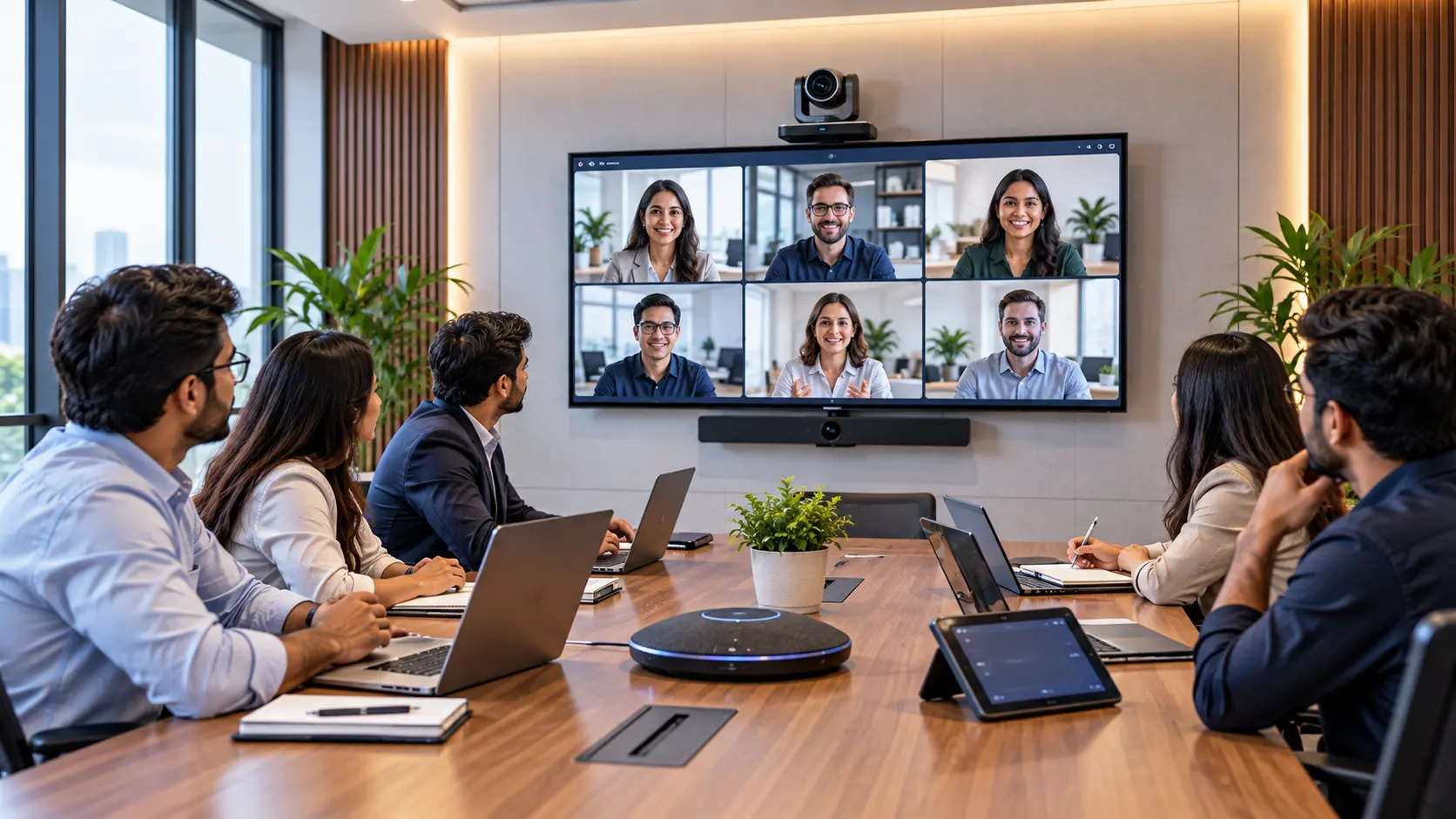
Video conferencing has become an essential part of modern business communication. Whether your employees work from the office, remotely or across multiple locations, a reliable video conferencing setup helps teams collaborate, conduct presentations, meet clients and make decisions without being in the same room.
However, a successful video meeting requires more than a webcam and an internet connection. Poor camera placement, unclear audio, inadequate lighting, unsuitable displays and unstable connectivity can make meetings frustrating and unproductive.
The right setup depends on your office size, meeting-room layout, number of participants and the type of meetings you conduct.
In this guide, we’ll explain how to plan a video conferencing setup for your office, choose the right cameras, microphones and displays, configure your network and create a comfortable meeting environment.
Before purchasing equipment, identify how your employees will use the meeting room.
A small meeting room used by two to four people has different requirements from a large conference room used for presentations, client meetings or hybrid discussions.
Consider these questions:
How many people typically attend meetings in the room?
Will participants join remotely, or will everyone be physically present?
How large is the meeting room?
Will meetings involve presentations, screen sharing or demonstrations?
Do employees use laptops, dedicated conference-room systems or both?
Do you need to support multiple video conferencing platforms?
Room type | Typical setup |
|---|---|
Small meeting room | Webcam, USB speakerphone and display |
Medium conference room | Wide-angle or PTZ camera, dedicated microphone and larger display |
Large conference room | Professional camera system, multiple microphones, audio processing and large displays |
Training or presentation room | Camera, microphones, display or projector, and presentation equipment |
These are starting points rather than strict rules. Room acoustics, seating arrangement and participant behavior can matter as much as the number of seats.
The camera determines how remote participants see people in your meeting room. A suitable camera should capture everyone clearly without making people at the far end of the table difficult to see.

USB webcams
USB webcams are suitable for small meeting rooms, individual workstations and simple video calls. They are generally straightforward to install and can connect directly to a computer.
Look for:
Suitable resolution and image quality.
A field of view that matches the room.
Reliable autofocus and exposure.
Good performance under your room’s lighting conditions.
Compatibility with your conferencing software.
Wide-angle conference cameras
Wide-angle cameras are designed to capture several people around a table. They can be useful in compact meeting rooms where participants sit relatively close to the camera.
Check whether the camera’s field of view can capture all seats without excessive distortion or making faces too small.
PTZ cameras
PTZ stands for Pan, Tilt and Zoom. These cameras can move horizontally, vertically and zoom in on specific parts of a room.
They can be useful in larger meeting rooms, training spaces and boardrooms where participants are spread across a wide area.
Intelligent conference cameras
Some modern conference cameras offer features such as automatic framing, speaker tracking and participant detection.
These features may improve the remote meeting experience, but their performance depends on room layout, camera positioning and software support. Test these functions with your actual meeting configuration before deployment.
Place the camera near the main display so remote participants appear close to eye level.
Position it so the entire meeting table is visible.
Avoid placing bright windows directly behind participants.
Check that people sitting at the ends of the table are not cut off.
Test camera framing from the perspective of a remote participant.
For rooms with long tables or multiple seating areas, a single camera may not be sufficient. Consider a camera with suitable optical zoom or a multi-camera setup if the meeting format requires it.
Audio quality is one of the most important parts of video conferencing. Remote participants may tolerate a slightly imperfect camera image, but unclear speech, echo and background noise can make a meeting difficult to follow.
The right microphone depends on the room’s size, the distance between participants and the amount of background noise.

USB microphones
USB microphones can work well for individual workstations and small rooms. They are simple to connect and can provide good voice quality when positioned appropriately.
Conference speakerphones
A conference speakerphone combines a microphone and speaker in one device. Many models are designed to capture voices from multiple directions around a meeting table.
They can be suitable for small and medium-sized meeting rooms, depending on their pickup range and the number of participants.
Ceiling microphones
Ceiling microphones can be useful in larger or more permanent conference-room installations. They reduce desk clutter and can capture voices from different seating positions when properly designed and installed.
Wireless microphones
Wireless microphones can be useful for presentations, training sessions and rooms where speakers move around. Consider battery life, charging arrangements, interference and microphone management.
Pickup range and coverage area.
Number of people speaking during a typical meeting.
Echo cancellation and noise reduction.
Compatibility with the conference-room computer or system.
Connection type and installation requirements.
Ability to expand microphone coverage if the room changes.
Echo often occurs when microphone audio picks up sound from the room’s speakers and sends it back into the call. Background noise may come from air conditioning, fans, projectors, typing or nearby conversations.
To improve audio:
Use a microphone designed for the room’s size.
Avoid placing microphones too close to speakers.
Enable appropriate acoustic echo cancellation.
Reduce unnecessary background noise.
Test the microphone from different seating positions.
Consider acoustic treatment in rooms with excessive reverberation.
For larger installations, a professional audio design may be necessary to coordinate microphones, speakers, acoustic processing and room acoustics.
The display helps employees view remote participants, presentations, shared documents and meeting information.
A display that’s too small can make text difficult to read, while an incorrectly positioned screen can create uncomfortable viewing angles.

A standard television may be sufficient for some small meeting rooms. Dedicated commercial displays may be more appropriate for frequent business use, especially where operating hours, installation requirements, connectivity and centralized control matter.
Compare:
Feature | What to consider |
|---|---|
Screen size | Room dimensions and viewing distance |
Resolution | Readability of shared documents and presentations |
Brightness | Ambient lighting and window exposure |
Inputs | HDMI, USB-C or other required connections |
Mounting | Wall, stand or mobile installation |
Operating hours | Frequency and duration of daily use |
Mount the screen at a comfortable viewing height for seated participants.
Ensure people at both ends of the table can see the content.
Avoid reflections from windows and overhead lights.
Leave enough space for the camera near the display.
Check that shared presentations and smaller text remain readable.
For a room where employees regularly share detailed spreadsheets, technical diagrams or design files, readability should be a major consideration.
A single display can work well for straightforward meetings. Two displays may be helpful in larger rooms where participants need to view remote attendees on one screen and shared content on another.
For example:
Display 1: Remote participants and meeting controls.
Display 2: Presentations, documents and screen sharing.
A dual-display setup is not necessary for every office. Consider whether it solves a real meeting-room problem before investing in additional equipment.
Microphones capture the voices of people in your room. Speakers reproduce the voices of remote participants.
In small rooms, a conference speakerphone may provide both functions. Larger rooms may require separate speakers, microphones and an audio-processing system.
When selecting speakers, consider:
Coverage throughout the room.
Clear speech reproduction.
Volume control and feedback prevention.
Compatibility with the microphone and conferencing system.
Placement relative to participants and microphones.
Avoid placing speakers in positions where their output is likely to be picked up directly by nearby microphones. This can increase echo and reduce the clarity of the conversation.
For permanent conference-room installations, audio coverage should be tested from every seating position, not just from the chair nearest the equipment.
Even excellent cameras and microphones cannot compensate for a poor network connection.
Video conferencing relies on timely transmission of audio and video in both directions. High latency, jitter and packet loss can cause frozen video, delayed conversations and broken audio.
Bandwidth
Consider how many simultaneous meetings the office will host and the expected quality of each call. Upload capacity is particularly important because office devices send video and audio to other participants.
Latency
Latency is the time required for data to travel between endpoints. High latency can create noticeable delays during conversations.
Jitter
Jitter is variation in packet arrival times. Excessive jitter can disrupt the smooth playback of audio and video.
Packet loss
Packet loss occurs when some data packets fail to reach their destination. It can result in choppy audio, frozen video and reduced call quality.
Use wired Ethernet for fixed conference-room systems wherever practical.
Provide reliable Wi-Fi coverage for employee laptops and mobile devices.
Check upload speed and connection quality during busy office hours.
Configure appropriate traffic prioritization where supported.
Avoid unnecessary background downloads during important meetings.
Monitor network performance and investigate recurring issues.
For offices with frequent meetings across multiple rooms, consider testing simultaneous calls under realistic conditions before finalizing the network design.
Hardware provides the physical equipment for meetings, but software handles scheduling, calls, screen sharing and collaboration.
Select a platform based on the applications your employees, clients and business partners already use.
Common requirements include:
Meeting scheduling and calendar integration.
Screen sharing and presentation support.
Participant management and waiting rooms.
Recording, if appropriate for your business.
Support for laptops and mobile devices.
Compatibility with the meeting-room hardware.
Security, administrative controls and licensing.
Before purchasing dedicated room equipment, verify that it supports your intended conferencing platform and its required features.
Also consider how guests will join meetings. A meeting room that works perfectly for internal employees may still create friction if external participants cannot easily connect.
A meeting room can have excellent equipment and still produce a poor experience if lighting and acoustics are neglected.
Good lighting makes faces easier to see and improves the overall video image.
For a better result:
Use soft, even lighting across participants’ faces.
Avoid bright windows directly behind the seating area.
Reduce harsh shadows from overhead lighting.
Avoid strong reflections on displays.
Test how the camera handles daylight and artificial lighting.
Hard floors, bare walls, glass partitions and high ceilings can create reflections that make speech sound distant or echoey.
Potential improvements include:
Acoustic wall panels.
Rugs or other suitable soft surfaces.
Curtains where appropriate.
Better microphone positioning.
Reducing unnecessary noise from fans and equipment.
Acoustic treatment should match the actual room. Adding random soft materials may not solve problems caused by poor microphone placement or an incorrectly configured audio system.
A conference room should be easy for employees to use without requiring technical assistance every time a meeting starts.
A complicated setup can waste time and lead to avoidable meeting delays.
A good meeting-room workflow should answer three questions:
How do employees start a meeting?
How do they connect their laptop and share content?
How do they switch between the room’s camera, microphone, speakers and display?
Start the room system
Power on the display and conference-room computer or dedicated meeting device.
Join the scheduled meeting
Use the calendar invitation, meeting-room interface or supported conferencing application.
Check audio and video
Confirm that the correct camera, microphone and speakers are selected.
Share the presentation
Connect a laptop or use the meeting platform’s screen-sharing function.
End the meeting and reset
Leave the meeting, stop sharing and return the room to its normal state.
Provide simple instructions near the display or in the room’s booking system. Keep cables, adapters and connection instructions organized so employees can get started quickly.
Use this checklist when planning your office meeting room. The equipment you need will depend on the room size and meeting requirements.
Meeting-room readiness
Core equipment
Connectivity
Room environment
Testing and administration
Before the room is used for an important client presentation or business meeting, test the complete system.
A successful test should include both local and remote participants, because some problems are only noticeable from the other side of the call.
Testing checklist:
Confirm that the camera captures everyone in the room.
Check image quality under the room’s normal lighting.
Test microphone coverage from every seat.
Check for echo, background noise and distorted audio.
Confirm that remote participants are audible throughout the room.
Test screen sharing, presentations and any external connections.
Check whether the network remains stable during a call.
Verify that employees can join and end meetings without assistance.
For larger rooms, test with a realistic number of participants and arrange a trial meeting with someone joining remotely. Ask them to assess audio clarity, camera framing and the overall experience.
Regular maintenance helps keep your meeting rooms reliable and reduces the risk of equipment problems during important calls.
Establish a simple maintenance schedule that covers:
Frequency | Maintenance task |
|---|---|
Before important meetings | Check camera, microphone, speakers and display |
Weekly | Inspect cables, connections and general room readiness |
Monthly | Review software and firmware updates |
Quarterly | Test the full meeting workflow and check room acoustics |
When equipment changes | Recheck compatibility and configuration |
Keep track of equipment models, warranty details, software versions and configuration settings. This information can help IT administrators troubleshoot problems and plan future upgrades.
For shared conference rooms, assign responsibility for reporting faults and checking that the room is ready for the next meeting.
A basic office setup usually needs a camera, microphone, speaker or speakerphone, display, conferencing software and a reliable internet connection. Larger meeting rooms may require dedicated room systems, PTZ cameras, multiple microphones, audio processing and professional installation.
A USB webcam or wide-angle conference camera may be sufficient for a small room. Choose a camera based on its field of view, image quality, lighting performance and the seating arrangement. Test whether everyone is clearly visible before installing it permanently.
Not always. Many conference cameras and speakerphones include integrated microphones. A separate microphone or expanded audio system may be useful when the room is larger, participants sit farther away or the built-in microphone cannot capture voices clearly.
The appropriate display size depends on the room dimensions, viewing distance and type of content. A small room may work with a modest display, while a larger room may need a larger screen or multiple displays. Test text and shared documents from the farthest seating position.
A wired Ethernet connection is often preferred for fixed conference-room equipment because it offers predictable connectivity and avoids many wireless interference issues. Wi-Fi can also work well when coverage, capacity and network performance are sufficient.
Use microphones suited to the room, position them correctly, reduce background noise and manage acoustic echo. For larger meeting rooms, assess microphone coverage, speaker placement and room acoustics together rather than treating each device separately.
Choosing compatible cameras, microphones, displays and networking equipment can make meetings easier to manage and more comfortable for employees and clients.
ComputerITMart can be the starting point for reviewing your office technology requirements and planning a suitable meeting-room setup.
Contact ComputerITMart to discuss your office IT infrastructure needs.
Field | Recommendation |
|---|---|
Focus keyword | Video conferencing setup for offices |
Category | IT Infrastructure |
Tags | Video Conferencing, Office Networking, Meeting Room Equipment, IT Infrastructure, Business Technology |
Schema | Article (BlogPosting) |
URL slug |
|
Featured image alt | Modern office conference room with video conferencing camera, microphone and large display |
Suggested internal links
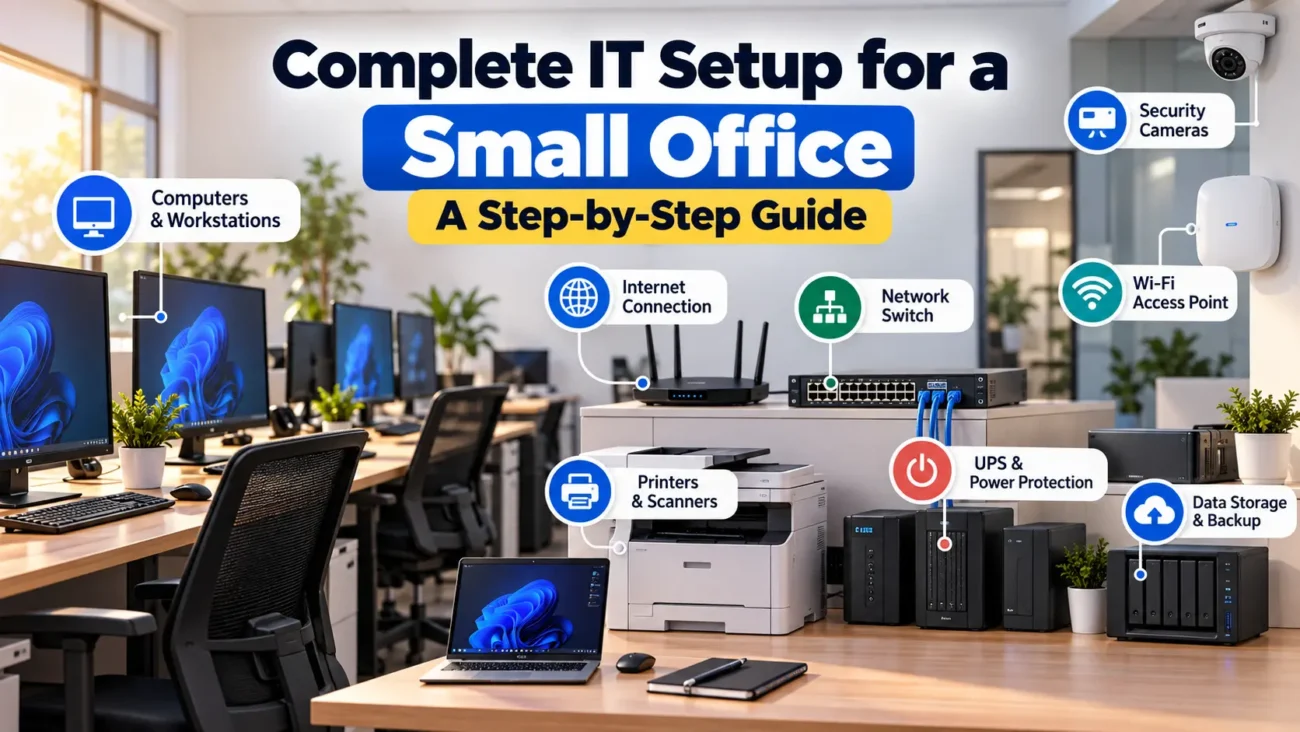
Complete IT Setup for a Small Office: A Step-by-Step Guide
Why Is Your Office Internet Slow? 12 Common Causes and How to Fix Them
Networking Guide: Everything You Need to Know About Routers, Switches, Wi-Fi & Access Points
How to Choose the Right Printer for Your Office (if published)
SEO recommendation: Link this article to your small-office IT setup guide and your office networking content. Keep the focus on planning and using meeting-room technology, rather than repeating general computer or networking advice. Add original room-layout diagrams or photos of actual equipment installations if available.