
Get Free PC Consultation
Talk to our experts and get the best PC solution for your needs and budget.
Your details are safe. No spam, ever.

Talk to our experts and get the best PC solution for your needs and budget.
Your details are safe. No spam, ever.
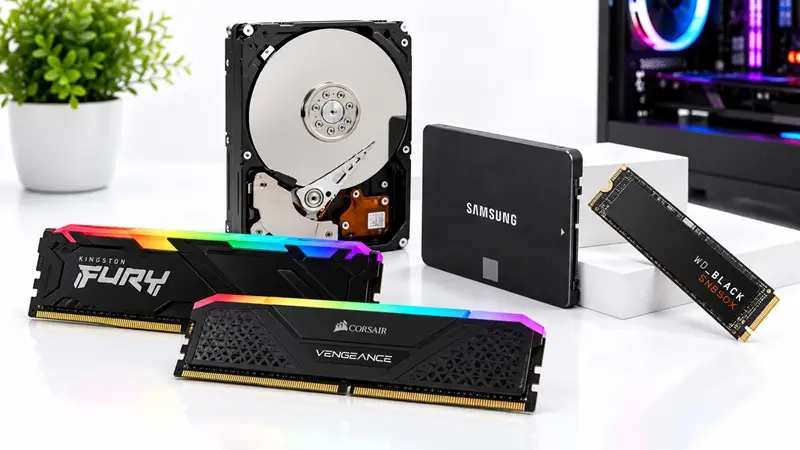
Meta Title: SSD vs HDD: Which Is Better for Your PC in 2026?
Meta Description: Confused between SSD and HDD? Compare speed, storage capacity, price, gaming performance, and durability to choose the right storage for your PC.
URL Slug: /blog/ssd-vs-hdd
Have you ever switched on your computer and waited several minutes for it to become ready? Or launched a game only to spend more time watching loading screens than actually playing? Your computer’s storage drive could be one reason.
When building a new PC or upgrading an existing one, choosing between an SSD and an HDD is an important decision. Both store your operating system, games, applications, photos, videos, and other files, but they work differently.
An SSD is known for its fast performance, while an HDD offers more storage space at a lower cost. So, which one should you choose?
In this guide, we will explain the difference between SSDs and HDDs, how they affect your PC’s performance, and which option makes the most sense for gaming, office work, and everyday use.
SSD stands for Solid State Drive. It stores data using flash memory chips and has no moving mechanical parts.
Think of an SSD as a storage device that lets your computer access files quickly. Windows can start faster, applications can open in less time, and games can load more smoothly.
SSDs are available in different formats, including 2.5-inch SATA drives and compact M.2 drives. Many modern M.2 SSDs use the NVMe protocol over PCIe, allowing significantly higher transfer speeds than traditional SATA SSDs.
Faster boot times: Your PC can start Windows much faster than with a traditional HDD.
Quick application loading: Programs and large files generally open faster.
Better gaming experience: Games can load levels, maps, and assets more quickly.
Silent operation: SSDs have no spinning platters or moving read/write heads.
Lower power consumption: Many SSDs use less power than mechanical hard drives, although actual consumption varies by model.
Better resistance to physical shock: With no moving parts, SSDs are generally more resistant to everyday bumps than HDDs.
SSDs generally cost more per gigabyte than HDDs.
High-capacity SSDs can be expensive.
Flash memory has finite write endurance, which varies by drive model and usage.
For most modern PCs, an SSD is an excellent choice for the operating system, frequently used applications, and games you play regularly.
HDD stands for Hard Disk Drive. It stores data on spinning magnetic platters and uses a mechanical read/write head to access information.
HDDs have been used in computers for decades. Although they are slower than SSDs, they remain useful when you need a large amount of storage without spending too much.
For example, if you have thousands of photos, hours of video footage, a large media collection, or backups of important files, an HDD can provide plenty of space at a comparatively low price.
Affordable storage: HDDs usually offer a lower cost per gigabyte.
Large capacities: They are available in high-capacity models for desktops and storage systems.
Suitable for large files: HDDs work well for storing photos, videos, archives, and other files that do not require frequent high-speed access.
Useful for backups: A separate HDD can provide additional local storage for backup copies.
HDDs are significantly slower than SSDs for many everyday tasks.
Moving mechanical parts create noise and vibration.
They are more vulnerable to physical shock while operating.
They generally consume more power than comparable low-power SSDs.
Games and applications may take longer to load.
An HDD is still a practical option when storage capacity and price matter more than speed.
Here is a quick comparison of the two storage technologies.
| Feature | SSD | HDD |
|---|---|---|
| Full form | Solid State Drive | Hard Disk Drive |
| Technology | Flash memory | Magnetic spinning platters |
| Speed | Much faster for most everyday tasks | Slower, especially for random access |
| Boot time | Usually faster | Usually slower |
| Game loading | Generally quicker | Generally longer |
| Noise | Silent | May produce spinning or clicking sounds |
| Shock resistance | Generally better | More vulnerable to physical shock |
| Cost per GB | Usually higher | Usually lower |
| Best use | OS, applications, active games | Bulk storage, archives, backups |
The exact performance depends on the drive model, interface, workload, and the rest of your PC.
If you are building a gaming PC, an SSD is generally the better choice for installing Windows and your games.
Modern games can contain large environments, detailed textures, and many assets that need to be loaded while playing. An SSD can reduce loading times and help games stream these assets more efficiently.
However, there is one important point: an SSD does not automatically increase your FPS in every game.
Your frame rate depends primarily on components such as your graphics card, processor, memory, and the game’s settings. An SSD mainly improves loading and responsiveness, although it can help with asset streaming in some games.
Consider these two situations:
Gaming with an SSD: Windows starts quickly, games generally load faster, and moving between menus or levels may feel more responsive.
Gaming with an HDD: Games can still run well, but loading screens may be longer, and some games may experience streaming-related delays.
For a modern gaming PC, a 1TB SSD is a sensible starting point if your budget allows it. A 2TB SSD provides more room for a growing game library.
If you need additional capacity for older games, recordings, or media, you can add an HDD later.
Not all SSDs offer the same performance.
A SATA SSD connects through the SATA interface and is already a substantial upgrade over a traditional HDD for everyday computing. An NVMe SSD typically uses an M.2 connector and PCIe interface to deliver much higher sequential transfer speeds.
| Storage type | Typical performance | Suitable for |
|---|---|---|
| HDD | Mechanical storage; slower access | Bulk storage and archives |
| SATA SSD | Up to around 550 MB/s sequential reads in many consumer models | Everyday computing and affordable upgrades |
| PCIe Gen 3 NVMe SSD | Commonly around 2,000–3,500 MB/s sequential reads | Gaming and general-purpose PCs |
| PCIe Gen 4 NVMe SSD | Many models reach around 5,000–7,500 MB/s sequential reads | Modern gaming PCs and demanding workloads |
| PCIe Gen 5 NVMe SSD | High-end models can exceed 10,000 MB/s sequential reads | Compatible systems and demanding data workloads |
These figures are approximate examples, not guaranteed speeds. Actual performance varies by model, and sequential speeds are not the same as real-world application loading times.
Before purchasing an NVMe SSD, check whether your motherboard supports the required M.2 drive type and PCIe generation.
For most gamers and everyday users, a good SATA SSD or PCIe Gen 4 NVMe SSD is already fast enough. Paying extra for a Gen 5 drive may make more sense for demanding professional workloads than for ordinary gaming.
Yes, and for many desktop PC users, this is an excellent storage setup.
You do not have to choose only one. You can install an SSD and an HDD in the same computer, provided your system supports the required drives.
A practical arrangement is:
SSD: Install Windows, frequently used software, and your favourite games.
HDD: Store large videos, photos, downloads, older games, and other files that do not need the fastest access.
For example, a gaming PC with a 1TB NVMe SSD and a 2TB HDD gives you fast primary storage and additional space for larger files.
This approach balances performance and cost, especially if you have a large media collection or record gameplay.
Remember that an additional internal HDD is not a substitute for a separate backup. Important files should also be backed up to another drive or a suitable external or cloud storage location.
If your computer still uses an HDD as its primary Windows drive, upgrading to an SSD can be one of the most noticeable improvements you can make.
You may notice:
Faster Windows startup.
Less waiting when opening applications.
More responsive multitasking.
Reduced waiting during file access.
Shorter loading times in many games.
You do not necessarily need to replace your entire PC. If your existing computer supports a compatible SSD, you can often upgrade the storage while keeping the same processor, RAM, and graphics card.
Before buying, check whether your system supports a 2.5-inch SATA SSD, an M.2 SATA drive, or an M.2 NVMe SSD. These are not interchangeable in every computer.
Also, if you want to move Windows and your files from the old drive, plan for either a fresh Windows installation or a drive-cloning process.
The right capacity depends on what you store and how you use your computer.
Suitable for basic computing, browsing, office applications, and a relatively small number of additional programs. It can feel restrictive if you install several large games.
A reasonable option for everyday computing, students, office users, and lighter gaming setups.
A strong all-round choice for many gaming PCs. It provides room for Windows, applications, and multiple games, although storage needs vary considerably.
Ideal for users who maintain a larger game library, work with substantial creative projects, or want more room without frequently uninstalling files.
Useful for storing large collections of videos, photos, documents, recordings, and archived data at a comparatively low cost per gigabyte.
Always leave some free space on your primary drive for updates, temporary files, applications, and normal system operation.
The right option depends on your priorities.
For a gaming PC: Choose an SSD as your primary drive, ideally an NVMe model supported by your motherboard.
For an office or home PC: A SATA SSD or NVMe SSD can make everyday computing feel considerably faster.
For an older computer: A compatible SSD is often a worthwhile upgrade if the HDD is the main performance bottleneck.
For video editing: A fast SSD can help with active projects and media files, while larger secondary storage can hold completed projects and archives.
For a budget build: Start with an SSD for Windows and frequently used applications, then add an HDD if you need more capacity.
For backups and archives: An HDD can offer economical capacity, but maintain separate backup copies of important data.
An SSD is generally better for speed, responsiveness, and running an operating system. An HDD is generally better when you need large amounts of storage at a lower cost.
Usually, an SSD does not significantly increase average FPS on its own. It can reduce loading times and improve asset streaming in some games, while FPS is more closely tied to the CPU, GPU, RAM, and game settings.
It can be enough for a smaller game library and a few applications. However, modern games can occupy substantial space, so 1TB is a more flexible starting point for many gaming PCs.
There is no universal answer. SSDs have limited write endurance, while HDDs have moving mechanical components that can wear or fail. Both can last for years, and either can fail unexpectedly. Keep backups regardless of which drive you use.
Yes, Windows can run from an HDD. However, startup times, updates, and application loading are generally slower than on an SSD.
NVMe can offer much higher transfer speeds, particularly for large file transfers and demanding workloads. For basic browsing and office work, the difference may be less noticeable than the upgrade from an HDD to any decent SSD.
If you prioritise speed and want to install Windows and frequently used applications or games, a 1TB SSD is usually the better choice. If your main requirement is inexpensive storage for large files, a 2TB HDD may provide better value. If your budget permits, combining both can deliver the advantages of each.
For most modern PCs, an SSD is the better choice for the primary storage drive. It makes Windows more responsive, helps applications open faster, and reduces loading times in many games.
An HDD still has an important role when you need economical, high-capacity storage for files, media, and archives.
If you are building a new PC, start with a compatible SSD and choose the capacity that fits your budget. If you already have an SSD but need more space, adding an HDD can be a practical next step.
Explore storage options at The IT Gear to find an SSD or HDD that fits your PC build, workload, and budget.
Upgrade your storage. Spend less time waiting and more time doing what you love.
