Get Free PC Consultation
Talk to our experts and get the best PC solution for your needs and budget.
Your details are safe. No spam, ever.

Talk to our experts and get the best PC solution for your needs and budget.
Your details are safe. No spam, ever.
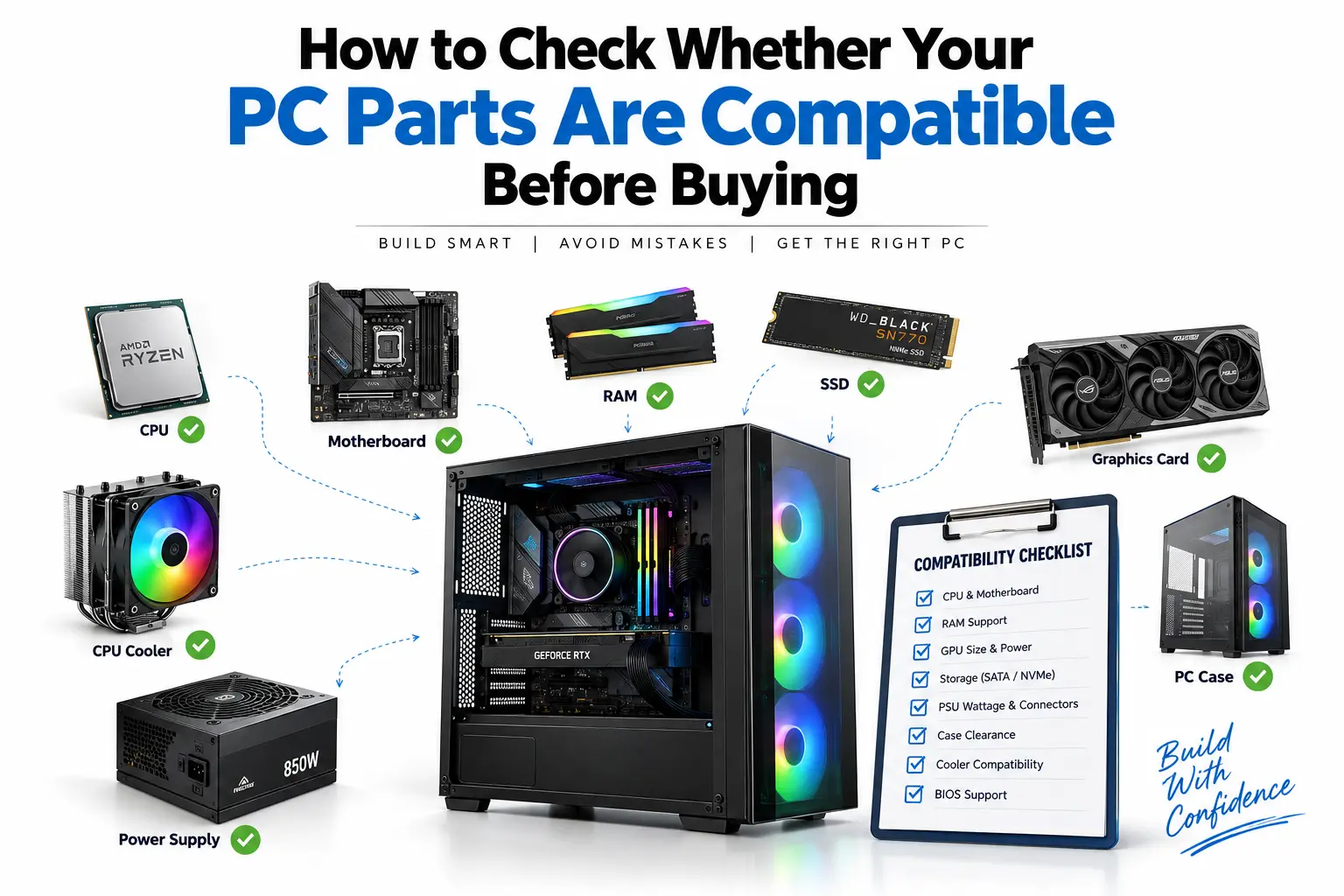
Building a custom PC can be exciting, but choosing individual components is only half the job. The more important question is: will all those components actually work together?
You can have a powerful processor, high-end graphics card, fast DDR5 RAM, a large NVMe SSD, and a premium motherboard—but if the motherboard doesn’t support the CPU, the RAM isn’t compatible, the power supply is insufficient, or the components don’t physically fit inside the cabinet, the PC may not work as expected.
This guide explains how to check PC part compatibility before buying, whether you’re building a gaming PC, workstation, editing PC, or office computer.
What Does PC Part Compatibility Mean?
PC compatibility means that the components you select can:
Connect physically to each other
Communicate correctly through supported standards
Receive sufficient power
Fit inside the selected PC case
Work with the required BIOS/firmware
Support the required performance and features
The major components you need to check are:
CPU
Motherboard
RAM
Graphics card
Storage
Power supply
PC case
CPU cooler
Case fans
Operating system and other peripherals
Let’s look at each one.
1. Check CPU and Motherboard Compatibility
The processor and motherboard are the first two components you should match.
The most important factor is the CPU socket.
For example, a processor designed for one socket cannot simply be installed on a motherboard using a different socket.
Check these specifications:
CPU socket
Motherboard socket
Supported CPU generation
Chipset compatibility
BIOS version
TDP/power requirements
For example, if your processor requires a particular socket, your motherboard must have the same compatible socket.
Don’t stop at the socket
Two CPUs can use the same socket but still require different BIOS versions or have different motherboard compatibility requirements.
Before purchasing, check the motherboard manufacturer’s CPU support list.
Example
Suppose you’re purchasing a new-generation processor.
Don’t simply search:
“Motherboard with matching socket”
Instead, check:
CPU → Socket → Chipset → Supported CPU list → Required BIOS
This is especially important when using an older motherboard with a newer processor.
2. Check the Motherboard Chipset
The chipset determines many of the features available on your motherboard.
Depending on your requirements, different chipsets may support different features such as:
CPU overclocking
Memory overclocking
PCIe connectivity
Number of M.2 slots
USB connectivity
Expansion slots
Storage interfaces
For a basic office PC, you may not need an expensive motherboard.
For a high-end gaming PC or workstation, however, motherboard features can become much more important.
Before buying, ask:
Does this motherboard provide everything my CPU and other components require?
3. Check RAM Compatibility
RAM compatibility is another common source of mistakes.
First check the memory generation supported by the motherboard.
For example:
DDR4 motherboard → DDR4 RAM
DDR5 motherboard → DDR5 RAM
DDR4 and DDR5 are not interchangeable.
Check these RAM specifications:
DDR generation
Maximum supported capacity
Maximum supported speed
Number of memory slots
Supported memory configuration
Motherboard QVL, if applicable
For example, if your motherboard has four RAM slots and supports a certain maximum capacity, you should plan your RAM configuration accordingly.
How Much RAM Should You Buy?
Your requirement depends on your workload.
Usage Typical RAM consideration
Basic office work 8GB–16GB
General productivity 16GB
Gaming 16GB–32GB
Content creation 32GB+
3D rendering/workstation 32GB–64GB+
Professional workloads 64GB+ depending on software
These are planning ranges rather than universal requirements. Individual applications can have substantially different memory requirements.
4. Check RAM Speed and Motherboard Support
Capacity isn’t the only thing that matters.
RAM also has a rated speed.
For example:
DDR5 6000 MT/s
But your motherboard and processor must support the relevant memory configuration.
Before buying high-speed RAM, check:
Motherboard specifications → Supported memory speeds → CPU memory support → Memory QVL
A motherboard may support a particular memory speed through an overclocked memory profile rather than as its base specification.
5. Check Graphics Card Compatibility
A graphics card needs to be compatible in three major areas:
1. Motherboard interface
Modern graphics cards generally use a PCI Express x16 interface.
Check that your motherboard provides an appropriate PCIe x16 slot.
2. Physical size
This is often overlooked.
Graphics cards can vary significantly in:
Length
Height
Thickness
Number of slots occupied
A large graphics card might not fit comfortably in a compact PC case.
3. Power requirements
Check the GPU manufacturer’s recommended power supply and required power connectors.
For example, a high-performance GPU may require significantly more power than an entry-level graphics card.
6. Check Graphics Card Length Against the Cabinet
Before purchasing a large GPU, check:
GPU length ≤ Case GPU clearance
But don’t check only the length.
Also check:
GPU thickness
Vertical clearance
Radiator placement
Front fan clearance
Power connector clearance
This becomes particularly important when using a large graphics card with a front-mounted radiator.
Simple example
If your case supports a maximum GPU length of 330mm and the graphics card is 340mm long, it may not fit.
Always check the manufacturer’s specifications rather than relying on the appearance of the product.
7. Check the Power Supply
The PSU powers every major component in your PC.
Your power supply should provide enough capacity for:
CPU
GPU
Motherboard
RAM
SSDs/HDDs
Fans
RGB accessories
USB-powered devices
But wattage isn’t the only consideration.
Also check:
PSU efficiency certification
PCIe/GPU power connectors
CPU EPS connectors
ATX/other form-factor compatibility
PSU dimensions
Manufacturer’s recommended PSU capacity for the GPU
Don’t Buy a PSU Based Only on Wattage
For example:
“This PSU is 750W, so it must be good.”
Not necessarily.
Two 750W power supplies can have very different quality, efficiency, protections, connectors, and platform designs.
For a gaming or workstation PC, choose a reputable PSU that is appropriate for the hardware and follows the relevant modern PSU standards.
8. Calculate Your Approximate Power Requirement
A basic approach is:
CPU power + GPU power + other components + reasonable headroom = PSU requirement
For example:
CPU: 120W
GPU: 300W
Motherboard + RAM: ~70W
SSDs + fans + accessories: ~60W
Approximate load:
120 + 300 + 70 + 60 = 550W
You would then select an appropriate PSU with sufficient capacity and suitable connectors rather than buying a 550W unit exactly at the estimated load.
For high-performance systems, transient power requirements and GPU manufacturer’s recommendations should also be considered.
9. Check CPU Cooler Compatibility
Buying a powerful CPU cooler doesn’t guarantee that it will fit your system.
Check:
CPU socket support
Cooler height
RAM clearance
Case CPU cooler clearance
Radiator size
Motherboard layout
For example, a large tower cooler may physically fit the CPU socket but interfere with tall RAM modules.
10. Check AIO Liquid Cooler Compatibility
If you’re using an AIO liquid cooler, check both:
CPU compatibility
Does the cooler support your CPU socket?
Case compatibility
Does the case support the radiator size?
Common radiator sizes include:
120mm
240mm
280mm
360mm
A 360mm radiator generally requires significantly more internal space than a 240mm radiator.
Also check whether the radiator can be installed at the:
Front
Top
Rear
depending on the cabinet design.
11. Check SSD Compatibility
Modern PCs can use several storage interfaces.
The most common options include:
SATA SSD
M.2 SATA SSD
M.2 NVMe SSD
An M.2 drive isn’t automatically NVMe. M.2 describes the physical form factor, while NVMe describes the storage protocol.
Before buying an SSD, check:
M.2 slot type
PCIe generation
Supported form factor
Number of M.2 slots
Whether installing an M.2 drive disables another SATA/PCIe port
This last point is often overlooked.
Some motherboards share lanes between certain storage and expansion interfaces.
12. Check PCIe Generation
You may encounter specifications such as:
PCIe 3.0
PCIe 4.0
PCIe 5.0
When selecting GPUs and SSDs, check which PCIe generation your motherboard supports.
PCIe generations are generally backward compatible, but the device may operate according to the capabilities of the platform.
For most buyers, the important question isn’t simply:
“Is it PCIe 5.0?”
Instead ask:
Does this combination provide the performance and features I actually need?
13. Check the PC Case Form Factor
Your motherboard and cabinet must have compatible form factors.
Common motherboard sizes include:
ATX
Micro-ATX
Mini-ITX
A case may support one or several of these sizes.
For example:
ATX motherboard → ATX-compatible case
A compact Mini-ITX case may not accept a full-size ATX motherboard.
14. Check the Case Before Buying the Components
Your case needs to accommodate:
Motherboard
Graphics card
CPU cooler
PSU
Storage drives
Radiators
Case fans
Check the manufacturer’s specifications for:
GPU clearance
How long a graphics card can fit.
CPU cooler clearance
Maximum supported CPU cooler height.
Radiator support
Which radiator sizes are supported.
PSU support
Which PSU form factors and lengths are supported.
Storage support
How many SSDs/HDDs can be installed.
15. Check the Power Connectors
Compatibility isn’t only about wattage.
Your PSU needs the appropriate connectors for the components.
Depending on the hardware, you may need connectors for:
Motherboard
CPU
GPU
SATA devices
Other accessories
Modern high-performance graphics cards can use newer high-power GPU connectors, so check the exact GPU and PSU specifications before buying.
Never force a connector into a component.
16. Check Motherboard I/O
Think about what you’ll connect to your PC.
You may need:
USB-A
USB-C
HDMI
DisplayPort
Ethernet
Wi-Fi
Bluetooth
Audio
Additional expansion cards
For example, if you need Wi-Fi but purchase a motherboard without built-in wireless connectivity, you’ll need an additional Wi-Fi adapter or expansion card.
17. Check Wi-Fi and Bluetooth Requirements
If wireless connectivity is important, verify whether the motherboard includes:
Wi-Fi
Bluetooth
External antenna
Don’t assume that every motherboard with a similar model name includes Wi-Fi.
Manufacturers often sell separate Wi-Fi and non-Wi-Fi variants.
18. Check Monitor and GPU Compatibility
Your graphics card should provide the display connections required by your monitor.
Check:
HDMI version
DisplayPort version
Number of outputs
Maximum supported resolution
Refresh-rate requirements
For example, if you want to use a high-refresh-rate 1440p monitor, make sure your graphics card and selected connection can support the desired resolution and refresh rate.
19. Check Your CPU’s Integrated Graphics
Some processors include integrated graphics while others require a dedicated graphics card.
If you’re building a PC without a discrete GPU, verify that your processor actually provides integrated graphics.
If the CPU has no integrated graphics, connecting the monitor to the motherboard’s display output may not produce an image.
20. Check BIOS Compatibility
This is especially important when combining:
New CPU + older motherboard
The motherboard may physically support the processor’s socket but require a BIOS update before the CPU will boot.
Before buying:
Visit the motherboard manufacturer’s website.
Find the CPU support list.
Search for your processor.
Check the minimum BIOS version.
Check whether the motherboard has a BIOS Flashback/update feature if needed.
21. Check Motherboard RAM QVL
Motherboard manufacturers often publish a Qualified Vendor List (QVL) for memory.
It contains memory modules that the manufacturer has tested with particular motherboard models.
QVL compatibility isn’t always mandatory for RAM to work, but it can reduce uncertainty when building a system, especially with high-speed memory kits.
22. Don’t Forget the Operating System
Hardware compatibility isn’t the only concern.
Your operating system and drivers also need to support your hardware.
Before assembling the PC, check:
Operating system compatibility
Chipset drivers
GPU drivers
LAN/Wi-Fi drivers
Audio drivers
BIOS/firmware requirements
For a new PC, download important motherboard and GPU drivers from the manufacturers’ official websites.
23. Use a PC Compatibility Checker
One of the easiest ways to catch compatibility problems is to use a PC-building compatibility tool.
You can enter:
CPU
Motherboard
RAM
GPU
SSD
PSU
Case
Cooler
and check for potential compatibility issues.
However, don’t rely blindly on automated compatibility warnings.
Always verify critical specifications using the manufacturer’s product pages, especially:
CPU support
BIOS version
GPU dimensions
PSU requirements
Cooler clearance
RAM support
M.2 configuration
Complete PC Compatibility Checklist
Before purchasing your components, run through this checklist.
CPU
☐ Correct motherboard socket
☐ Supported CPU generation
☐ Required BIOS version checked
☐ CPU power requirements checked
Motherboard
☐ Correct CPU socket
☐ Appropriate chipset
☐ Correct RAM generation
☐ Enough RAM slots
☐ Enough M.2 slots
☐ Required USB ports
☐ Required networking features
RAM
☐ Correct DDR generation
☐ Supported capacity
☐ Supported speed
☐ Appropriate number of modules
GPU
☐ Compatible PCIe slot
☐ Fits inside the case
☐ PSU requirement checked
☐ Required power connectors available
☐ Display outputs match your monitor
Storage
☐ Correct interface
☐ M.2 compatibility checked
☐ PCIe generation checked
☐ Available motherboard slots checked
CPU Cooler
☐ CPU socket supported
☐ Cooler height checked
☐ RAM clearance checked
☐ Case clearance checked
PSU
☐ Sufficient wattage
☐ Appropriate connectors
☐ Suitable form factor
☐ Reputable model/platform
☐ GPU power requirements checked
Case
☐ Motherboard form factor supported
☐ GPU length supported
☐ CPU cooler height supported
☐ PSU size supported
☐ Radiator compatibility checked
☐ Enough airflow/fan support
Example of a Compatible PC Build
Imagine you’re planning a gaming PC.
Your component list might look like:
CPU
↓
Motherboard
↓
DDR5 RAM
↓
Graphics Card
↓
NVMe SSD
↓
CPU Cooler
↓
Power Supply
↓
PC Case
Don’t purchase each component independently.
Instead, validate the complete chain:
CPU ↔ Motherboard ↔ RAM ↔ GPU ↔ PSU ↔ Case ↔ Cooler ↔ Storage
This approach can prevent expensive compatibility mistakes.
Common PC Compatibility Mistakes to Avoid
❌ Buying RAM based only on capacity
32GB RAM isn’t enough information.
Check the DDR generation, speed, motherboard support and configuration.
❌ Checking only the CPU socket
A matching socket doesn’t guarantee every processor/BIOS combination will work.
❌ Ignoring GPU dimensions
A graphics card can be electrically compatible but physically impossible to install in your case.
❌ Choosing a PSU only by wattage
Connector compatibility, PSU quality and GPU requirements also matter.
❌ Assuming every M.2 SSD is the same
M.2 is a physical form factor. Check whether the drive uses SATA or NVMe and what the motherboard supports.
❌ Ignoring BIOS requirements
An older motherboard may require a BIOS update for a newer CPU.
❌ Buying a CPU cooler without checking clearance
The cooler must fit the CPU socket and the case.
Final Thoughts
Checking PC compatibility before buying is one of the most important steps in building a custom computer.
The easiest approach is to avoid looking at each component separately. Instead, treat the PC as a complete system.
Start with:
CPU → Motherboard → RAM → GPU → Storage → PSU → Cooler → Case
Then verify:
Socket + chipset + BIOS + RAM + PCIe + dimensions + power + connectors + cooling
Taking 20–30 minutes to verify these specifications before placing an order can save you from expensive returns, installation problems and hardware incompatibility.
If you’re unsure about a particular combination, check the manufacturer’s specifications before purchasing rather than assuming that the parts will work together.
Frequently Asked Questions
Can I use any RAM with any motherboard?
No. The RAM must use a memory generation and configuration supported by the motherboard. Check the motherboard’s specifications before purchasing.
Can any graphics card work with any motherboard?
Modern GPUs generally use PCIe interfaces, but you still need to check the motherboard slot, case clearance, PSU capacity and required power connectors.
Can I use an older motherboard with a new CPU?
Sometimes. Check the CPU support list and required BIOS version for the specific motherboard.
How do I know whether a GPU will fit my PC case?
Compare the graphics card’s dimensions with the case manufacturer’s maximum GPU clearance. Also check thickness and power-connector clearance.
Is a 750W PSU enough for every gaming PC?
No. PSU requirements depend on the CPU, GPU and complete system configuration. Check the graphics card manufacturer’s recommendations and the rest of the system’s power requirements.
Should I check compatibility before buying every PC component?
Yes. Ideally, create the complete parts list first and verify compatibility before purchasing individual components.