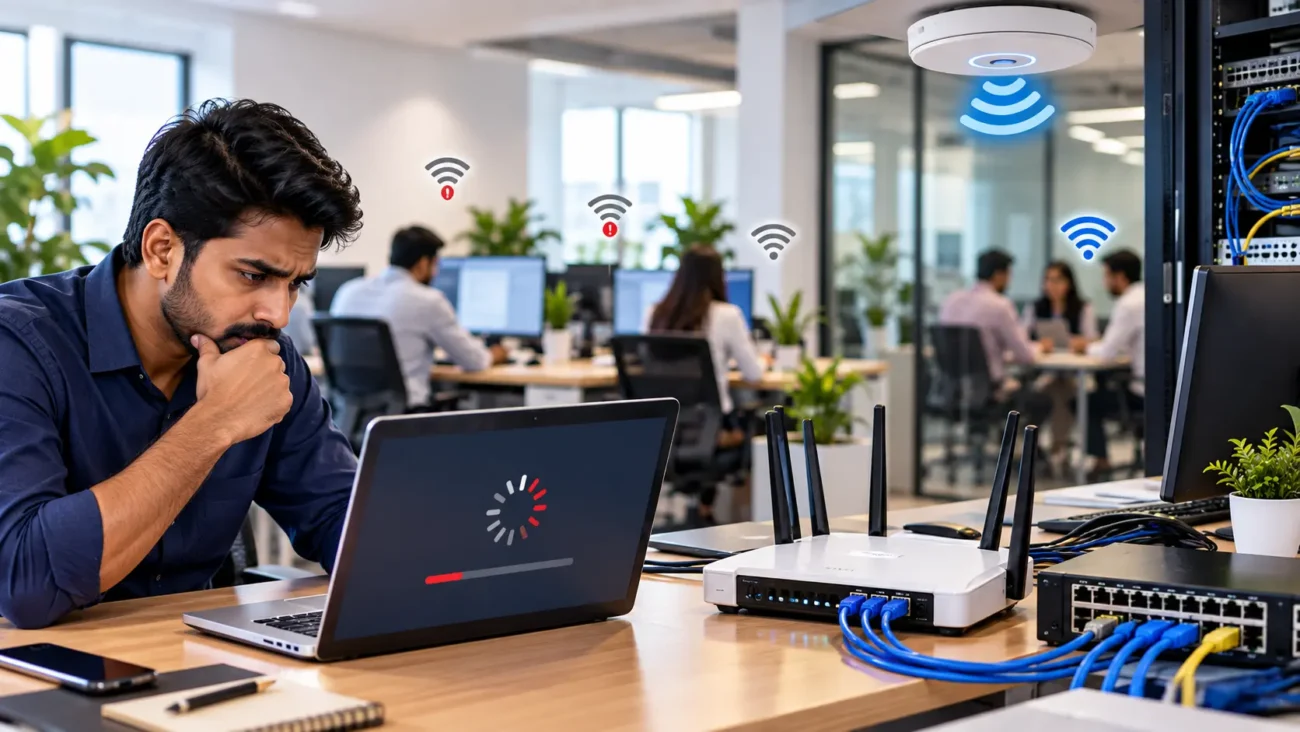
Get Free PC Consultation
Talk to our experts and get the best PC solution for your needs and budget.
Your details are safe. No spam, ever.

Talk to our experts and get the best PC solution for your needs and budget.
Your details are safe. No spam, ever.
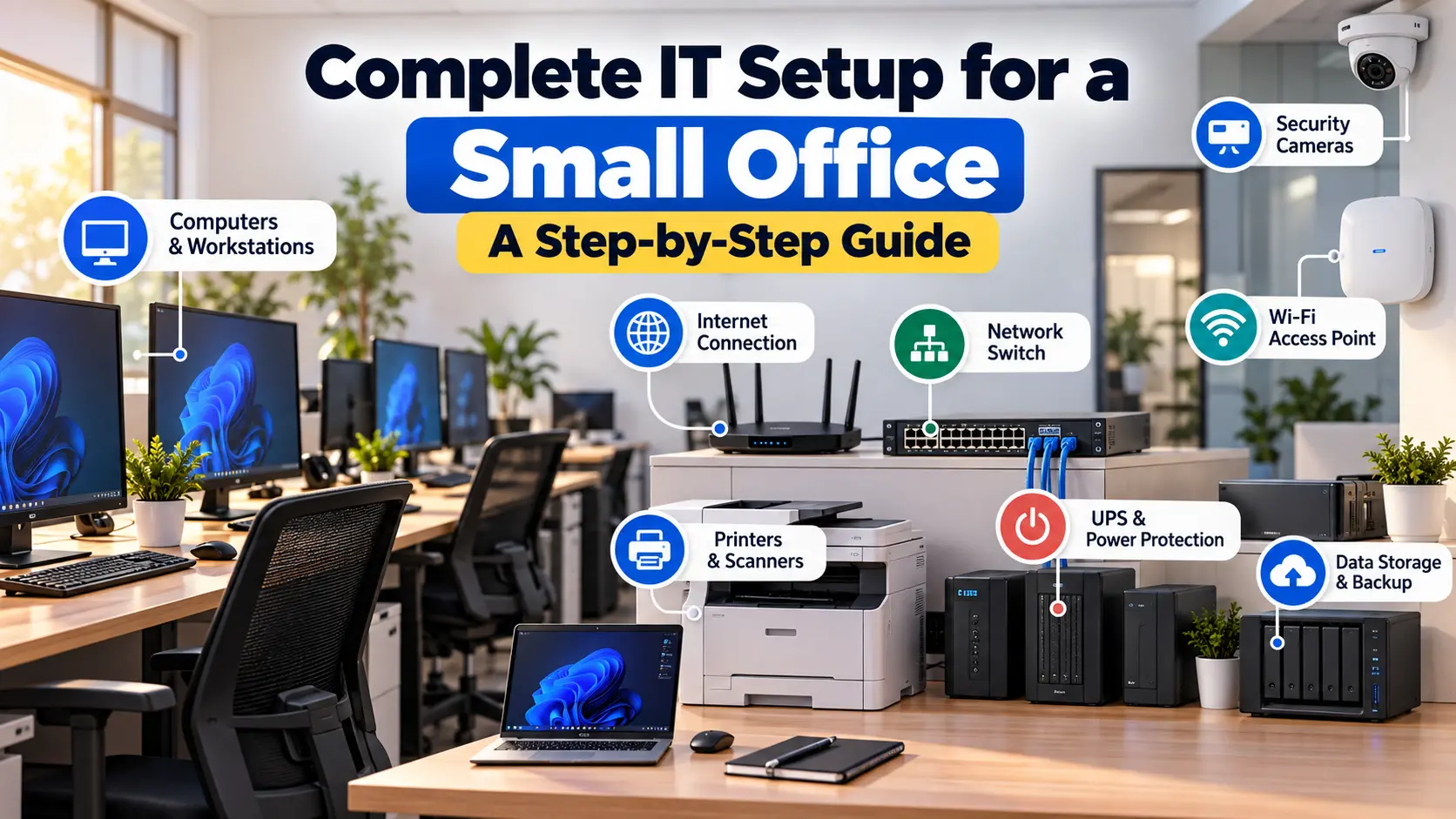
Setting up IT infrastructure is one of the most important steps when opening a new office or expanding a small business. From computers and internet connectivity to cybersecurity and data backup, every component plays a role in keeping daily operations running smoothly.
A poorly planned IT setup can lead to slow internet, communication problems, data loss, security risks and unnecessary expenses. On the other hand, a properly designed IT infrastructure helps employees work efficiently, protects important business information and supports future growth.
Whether you’re setting up an office for five employees or a growing team of 30, this guide explains how to plan and implement your IT infrastructure step by step.
Before purchasing computers, networking equipment or software, identify what your business actually needs.
Different businesses have different IT requirements. An accounting firm may need secure document storage and accounting software, while a design agency may require high-performance computers and large displays.
Start by answering these questions:
How many employees will use computers?
What software and applications will they need?
Will employees work from the office, remotely or in a hybrid arrangement?
How much data will your business generate and store?
Do you need shared printers, video conferencing or specialized equipment?
What security and compliance requirements apply to your business?
Practical tip
Prepare an IT requirements document before buying equipment. Include employee roles, required applications, device specifications, internet requirements and estimated costs. This helps prevent unnecessary purchases and missing equipment.
Computers are the foundation of most office IT environments. Selecting the right hardware depends on the work employees perform, not simply the purchase price.
For general office tasks, such as email, spreadsheets, browsing and document editing, standard business desktops or laptops are usually sufficient. Employees working with large datasets, engineering applications, video editing or graphic design may need more powerful systems.
Component | What to consider |
|---|---|
Processor | Choose according to workload and software requirements |
RAM | 8–16 GB for many basic office workloads; more for demanding applications |
Storage | SSD for responsive startup and application loading |
Display | Comfortable size and resolution for daily work |
Connectivity | Reliable Wi-Fi, Ethernet and suitable USB ports |
Warranty | Business support, repair options and replacement coverage |
For most general office users, an SSD and sufficient memory will make a noticeable difference to everyday responsiveness.
Also consider whether laptops or desktops are more appropriate. Laptops are useful for employees who attend meetings or work remotely, while desktops can be suitable for fixed workstations and easier hardware upgrades.
Internet connectivity supports email, cloud applications, video meetings, online transactions and communication with customers. An unstable connection can affect the productivity of the entire office.
When selecting an internet plan, consider:
Number of employees and connected devices.
Video conferencing and cloud application usage.
File uploads and downloads.
Internet service availability and reliability at your location.
Support response times and repair arrangements.
There is no single speed that works for every business. A five-person office using email and web applications will have different requirements from a 30-person office regularly conducting video conferences and transferring large files.
Evaluate both download and upload speeds. Upload performance matters for video meetings, cloud backups and sending large documents.
For businesses that rely heavily on internet connectivity, consider a backup connection from a second provider or a suitable mobile broadband service. A backup connection can help maintain essential operations during a primary connection outage.
A reliable office network allows employees to access the internet, communicate with shared devices and use approved business resources.
A typical small-office network may include:
Internet connection
ISP modem / ONT
Router / Firewall
Traffic routing and security
Network switch
Connects wired devices
Office PCs
Printers
Wi-Fi access point
Illustrative small-office network layout. Actual topology depends on office size, equipment and security requirements.
Wired Ethernet connections are useful for fixed workstations, printers and devices that need stable connectivity. Wi-Fi provides flexibility for laptops, smartphones and meeting rooms.
Many offices benefit from a combination of both.
For reliable networking:
Position access points to provide coverage throughout the office.
Use Ethernet for fixed devices where practical.
Keep network equipment in a secure, ventilated location.
Label network cables and switch ports.
Separate guest Wi-Fi from internal business resources.
Document network settings and authorized administrators.
For larger offices, consider structured cabling and a network design that allows additional employees and devices to be added without rebuilding the entire setup.
Cybersecurity should be included in your IT setup from the beginning, rather than added only after a problem occurs.
Small businesses can be affected by phishing, malware, stolen credentials, unauthorized access and data breaches. Even a small office should have basic security policies and technical protections.
Use strong passwords: Require unique passwords for business accounts and use a password manager where appropriate.
Enable multi-factor authentication (MFA): Protect email, cloud storage, remote access and administrator accounts.
Install endpoint protection: Use reputable security software and ensure it receives regular updates.
Keep systems updated: Apply operating system, application, router and firmware security updates.
Restrict administrator access: Employees should use standard accounts for everyday work wherever possible.
Secure Wi-Fi: Use modern Wi-Fi security, change default administrative credentials and provide a separate guest network.
Train employees: Teach staff how to recognize phishing emails, suspicious attachments and fraudulent login pages.
Your office should also have a process for reporting suspicious activity and responding to lost devices, compromised accounts and potential data breaches.
Business email and productivity applications are essential for everyday communication, document creation, scheduling and collaboration.
Start by identifying the applications employees need and deciding how accounts will be created, managed and removed.
Software | Purpose |
|---|---|
Business email | Professional communication and calendars |
Office productivity | Documents, spreadsheets and presentations |
Video conferencing | Meetings and collaboration |
Cloud storage | File sharing and document access |
Accounting software | Invoicing and financial management |
Endpoint security | Device and threat protection |
Remote support | Troubleshooting and authorized assistance |
Use business-appropriate licenses and review how many users need access to each application. Avoid sharing one employee’s account across multiple people, particularly for email and applications containing sensitive information.
Set up company email addresses using your business domain, configure account recovery and enable MFA. Establish clear rules for employee onboarding and offboarding so that access can be granted and revoked appropriately.
Many small offices still rely on printing, scanning and copying for contracts, invoices, forms and other business documents.
Before selecting a printer, estimate the volume and type of documents your office produces.
Consider the following:
Laser vs inkjet printing requirements.
Black-and-white vs color printing.
Monthly printing volume.
Scanning and copying requirements.
Network connectivity.
Toner, ink and maintenance costs.
Secure printing for confidential documents.
For a shared office printer, configure access through the network and install the correct drivers on authorized computers.
If employees regularly print confidential documents, consider access controls or secure-release printing. Store devices in an appropriate location and ensure that documents containing sensitive information are not left unattended.
Business data can include customer records, financial documents, employee information, contracts, project files and operational records. Losing access to these files can interrupt business operations and create financial and legal problems.
Your office needs both a storage strategy and a backup strategy.
Cloud storage: Allows authorized employees to access and collaborate on files from different locations. Access controls, account security, synchronization and subscription costs should be reviewed.
Local file server or NAS: Can provide centralized storage for office employees and support specific internal workflows. It requires appropriate administration, access controls, maintenance and backup.
Hybrid storage: Combines local storage with cloud services where this suits the organization’s needs.
A widely used backup approach is to maintain:
3 copies of important data.
2 different types of storage media.
1 copy stored off-site.
For example, a business might keep its working files on a central storage system, maintain a separate backup and keep another protected copy off-site.
Backups should be monitored and periodically tested by restoring sample files. A backup that has never been tested may not be usable when you need it.
Important: File synchronization is not the same as backup. If an employee accidentally deletes a synchronized file or ransomware encrypts it, the change may also affect other synchronized locations. Use a backup solution with suitable retention and recovery options.
Power interruptions, voltage fluctuations and sudden shutdowns can disrupt office work and potentially damage equipment or cause data loss.
Consider power protection for important equipment, especially:
Routers and network switches.
File servers and NAS devices.
Desktop computers used for critical business operations.
Security and communications equipment.
A UPS provides temporary battery power during an outage. The required capacity and runtime depend on the connected equipment and how long the office needs to keep it operating.
List the equipment that needs backup power.
Check the power consumption of each device.
Calculate the total expected load.
Decide how much runtime is required.
Choose a UPS with suitable capacity and output.
Test battery operation and configure safe shutdown where supported.
Do not assume that a UPS will run an entire office for hours. For many small offices, its purpose is to provide enough time to save work, maintain essential connectivity briefly or shut down equipment safely.
Installing equipment is only the beginning. Your office needs a clear process for handling IT problems, maintaining systems and managing changes.
For a small business, IT support may be handled by an internal administrator, an external service provider or a combination of both.
Create a basic IT support process that covers:
Reporting computer, internet and software problems.
Prioritizing issues that affect multiple employees.
Managing new user accounts and permissions.
Installing approved software and updates.
Tracking hardware warranties and repairs.
Recording important configuration changes.
Escalating security incidents.
Maintain an inventory of your IT equipment, including device names, serial numbers, assigned users, purchase dates and warranty information.
A documented inventory makes it easier to plan replacements, track equipment and respond when something fails.
Each employee should have the access required for their role, without unnecessary access to business information or administrative settings.
Before employees start using office systems, establish policies for:
Passwords and MFA.
Personal device use.
Software installation.
Data sharing and file storage.
Internet and email use.
Remote work and remote access.
Reporting lost devices or security incidents.
Use role-based access where possible. For example, employees who only need access to shared project documents should not automatically receive administrative access to the network or accounting systems.
When an employee leaves, revoke their access promptly, recover company equipment and transfer ownership of business files and accounts as appropriate.
Once the equipment and software are installed, test the complete office environment before relying on it for everyday operations.
A computer working individually does not necessarily mean the entire office is ready. Shared devices, network access, account permissions, backups and power protection should all be checked.
After testing, document any unresolved issues, assign responsibility for fixing them and retest the affected systems.
A small office may have only a few employees today, but its IT requirements can change quickly as the business expands.
Choose equipment and infrastructure that can accommodate reasonable future growth without paying for unnecessary capacity today.
For example:
Leave spare capacity in network switches and plan for additional access points if needed.
Use a consistent process for configuring and securing new computers.
Choose storage and backup arrangements that can scale with business data.
Document network layouts, software licenses and administrative responsibilities.
Review IT requirements whenever the business adds employees, locations or new applications.
A scalable setup does not necessarily mean buying enterprise equipment. It means making sensible decisions now so future changes are easier to manage.
Setting up IT infrastructure for a small office involves much more than purchasing computers and connecting to the internet. It requires a coordinated plan for hardware, networking, cybersecurity, software, data storage, power protection and ongoing technical support.
Start by understanding your employees’ requirements, then build a reliable and secure environment around their daily work. Test the complete setup before opening and maintain clear documentation as your business grows.
A well-planned IT setup can help reduce avoidable downtime, improve productivity and give your business a stronger foundation for future expansion.
Whether you’re opening a new office or upgrading an existing setup, a structured IT assessment can help you identify the equipment, connectivity, security and support requirements for your business.
Contact ComputerITMart to discuss your office IT requirements and plan your next steps.
A typical setup may include computers or laptops, a reliable internet connection, a router or firewall, network switches, Wi-Fi access points, a printer, suitable power protection and storage or backup solutions. The exact requirements depend on the business and number of employees.
The cost depends on employee count, computer specifications, networking equipment, software licensing, security requirements and whether the office needs servers or specialized hardware. Prepare a budget based on the actual requirements and include ongoing costs such as internet, subscriptions, maintenance and replacements.
Not necessarily. Many small businesses can operate using cloud applications and managed storage without maintaining an on-site server. A local server or NAS may be useful when the business needs centralized local storage, specialized applications or particular control over its infrastructure.
Use MFA, strong unique passwords, regular software updates, endpoint protection, secure Wi-Fi, restricted administrator access and regular backups. Employee awareness and a clear incident-reporting process are also important.
Review security updates and backup status regularly, monitor equipment performance and inspect critical systems according to their maintenance requirements. Conduct periodic reviews of device inventory, account permissions, network configuration and disaster recovery procedures.
Suggested WordPress tags: Small Office IT, Office Networking, IT Infrastructure, Business Cybersecurity, IT Support, Data Backup
Suggested internal links: Networking Guide, Office Wi-Fi Security (once published), Data Backup Guide (once published), IT Support Services (if available).
SEO note: Use Article schema, add a relevant featured image with descriptive alt text, and link to the supporting guides as they become available. Add FAQ schema only if the FAQ content is visible on the page; FAQ rich-result display is not guaranteed.
I can also give you a three-question SEO practice quiz based on this blog to help you learn how to optimize future ComputerITMart articles.